

Appearance
Creating a Patient Appointment
To create a Patient Appointment, go to:
Home → Healthcare → Patient Appointment
From the Appointment List
- Go to Patient Appointment list
- Click + Add Patient Appointment
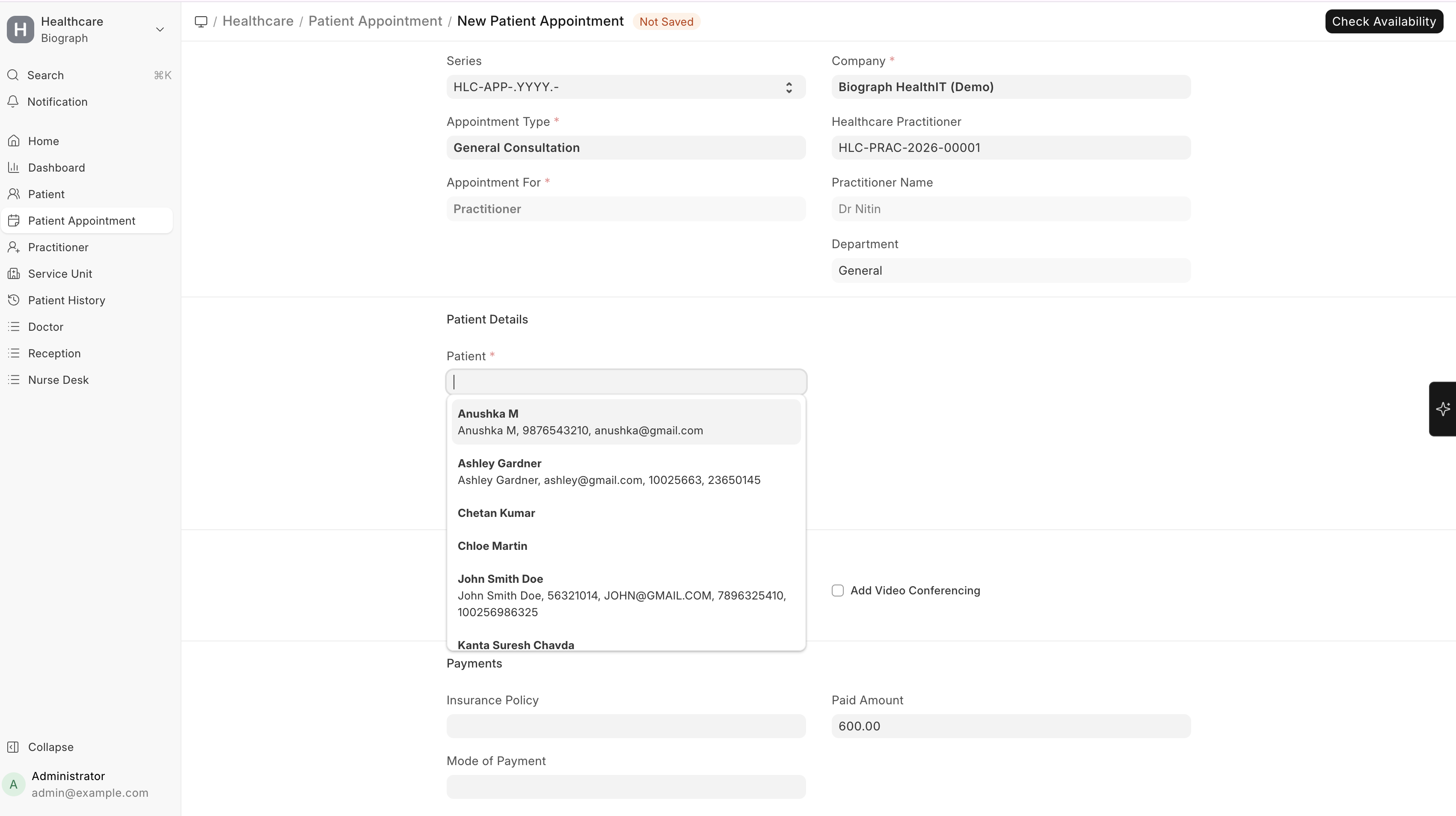
- Fill in the details:
| Field | Description |
|---|---|
| Patient | Select the patient (auto-populates patient name) |
| Appointment Type | Choose the type (General, Follow-up, Specialist, etc.) |
| Practitioner | Select the doctor/practitioner |
| Department | Medical department (auto-filled from practitioner) |
| Service Unit | Specific room or location (optional) |
| Appointment Date | Select the date |
| Appointment Time | Choose from available time slots |
| Duration | Auto-filled from appointment type, can be overridden |
| Referring Practitioner | If the patient was referred by another doctor |
| Notes | Any additional notes for the appointment |
Available Time Slots
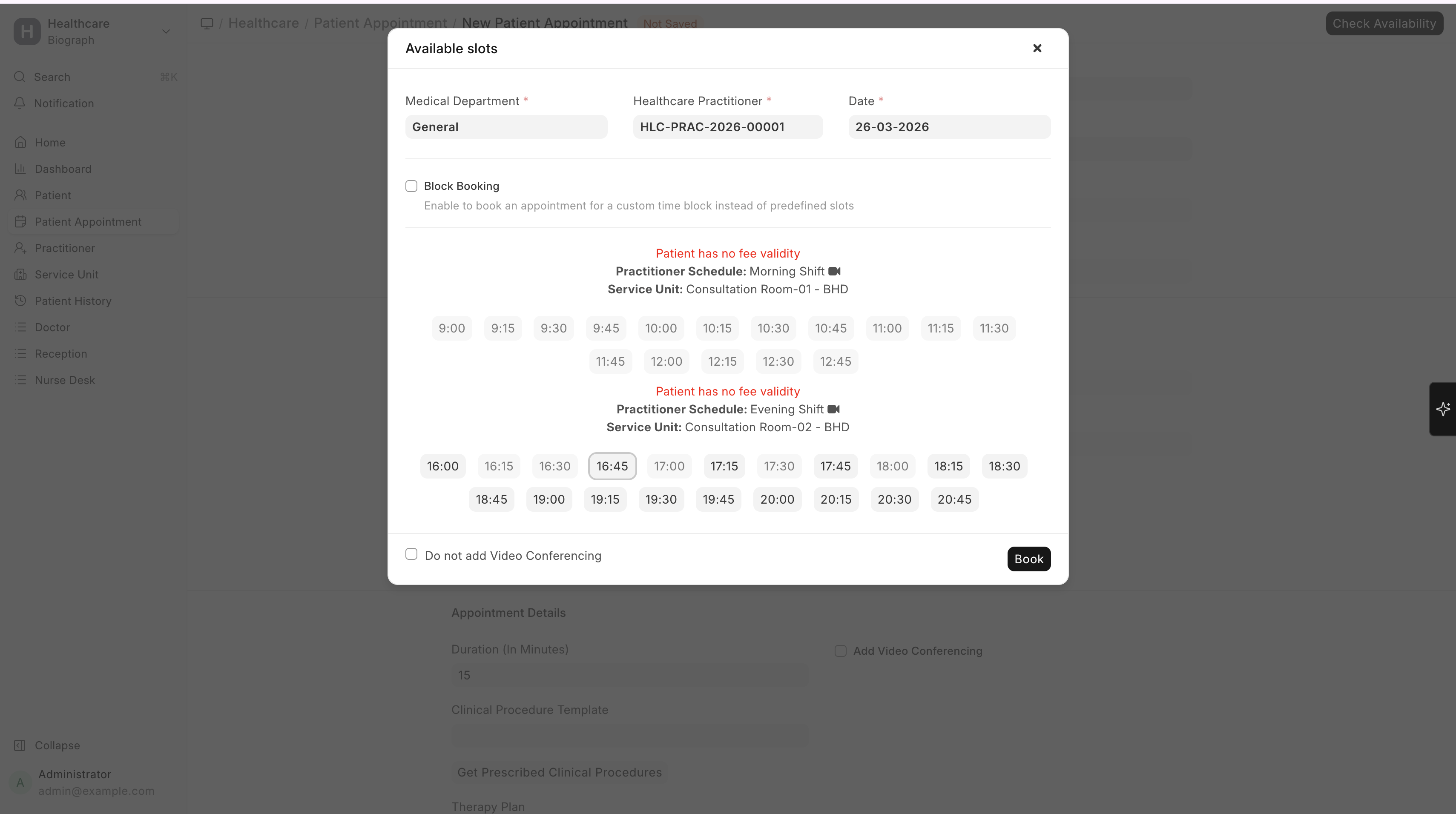
When you select a practitioner and date, the system shows available time slots based on:
- The practitioner's schedule template for that day of the week
- Any availability overrides for that specific date
- Time slots already booked by other patients are excluded
- Buffer time between appointments (if configured)
Block-Based Appointment Booking
Block-based appointment booking allows scheduling appointments for a custom time range instead of selecting predefined time slots. This is useful for longer consultations, therapy sessions, or procedures.
To Create a Block-Based Appointment
Go to:
Home → Healthcare → Patient Appointment
From the Appointment Form
- Click + Add Patient Appointment
- Fill basic details (Patient, Practitioner, Date, etc.)
- Click Check Availability
- In the availability dialog:
- Enable Block Booking
- Select required details
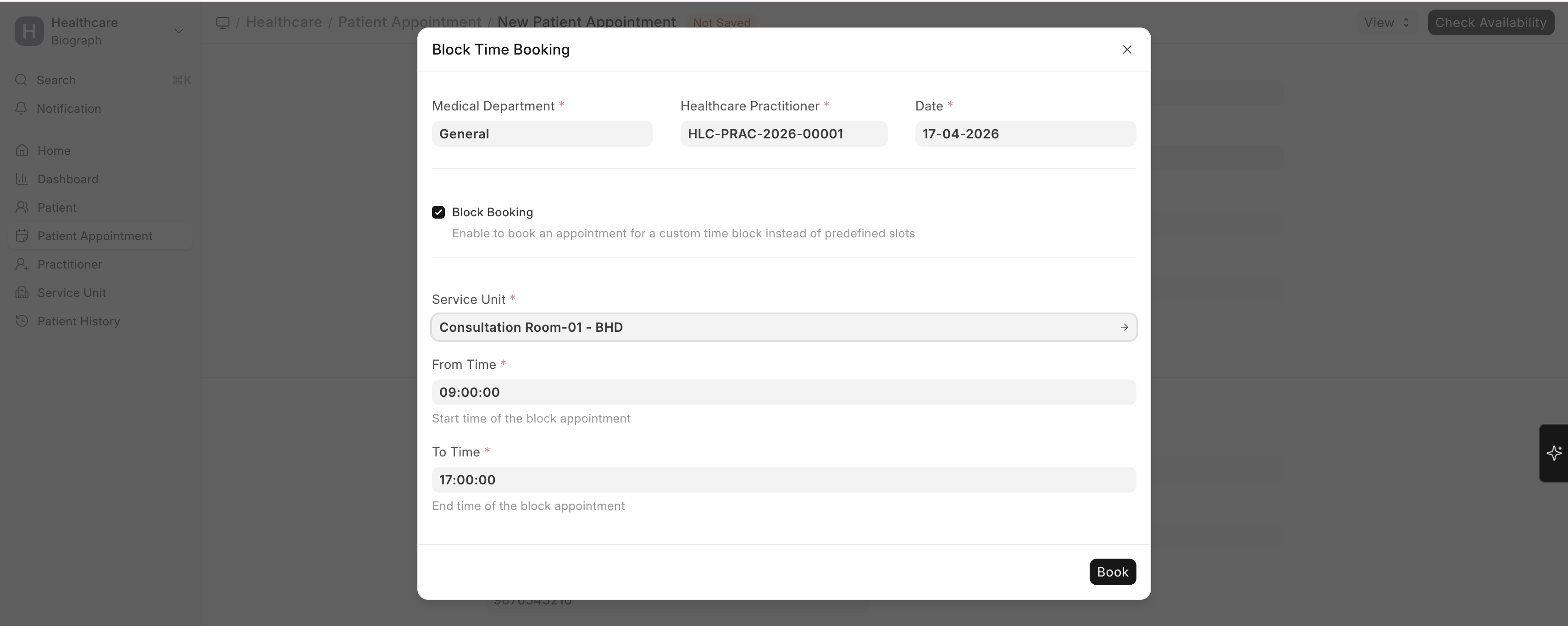
Block Booking Fields
| Field | Description |
|---|---|
| Medical Department | Department linked to the practitioner |
| Healthcare Practitioner | Selected doctor/practitioner |
| Date | Appointment date |
| Service Unit | Room or location for appointment |
| From Time | Start time of the appointment |
| To Time | End time of the appointment |
How It Works
- Instead of predefined slots, users manually enter From Time and To Time
- The system automatically:
- Calculates the appointment duration
- Books the entire time block
Suitable for:
- Therapy sessions
- Long consultations
- Procedures
Validation Rules
The system ensures:
- From Time must be earlier than To Time
- Cannot book past date/time
- No overlapping appointments are allowed
Conflict Detection
Before booking:
- The system checks for:
- Existing appointments
- Previously marked unavailable slots
If conflict exists:
- Booking is blocked
- A detailed conflict dialog is shown listing overlapping appointments
Outcome
- A standard Patient Appointment is created
- Duration is based on selected time range
- Appears in:
- Appointment List
- Calendar View
- A corresponding calendar event is created for the booked time block
Mark Time as Unavailable
The Mark Unavailable feature allows blocking a practitioner’s schedule for a specific time range. This prevents any appointments from being booked during that period.
To Mark Time as Unavailable
Go to:
Home → Healthcare → Patient Appointment
From the Appointment List
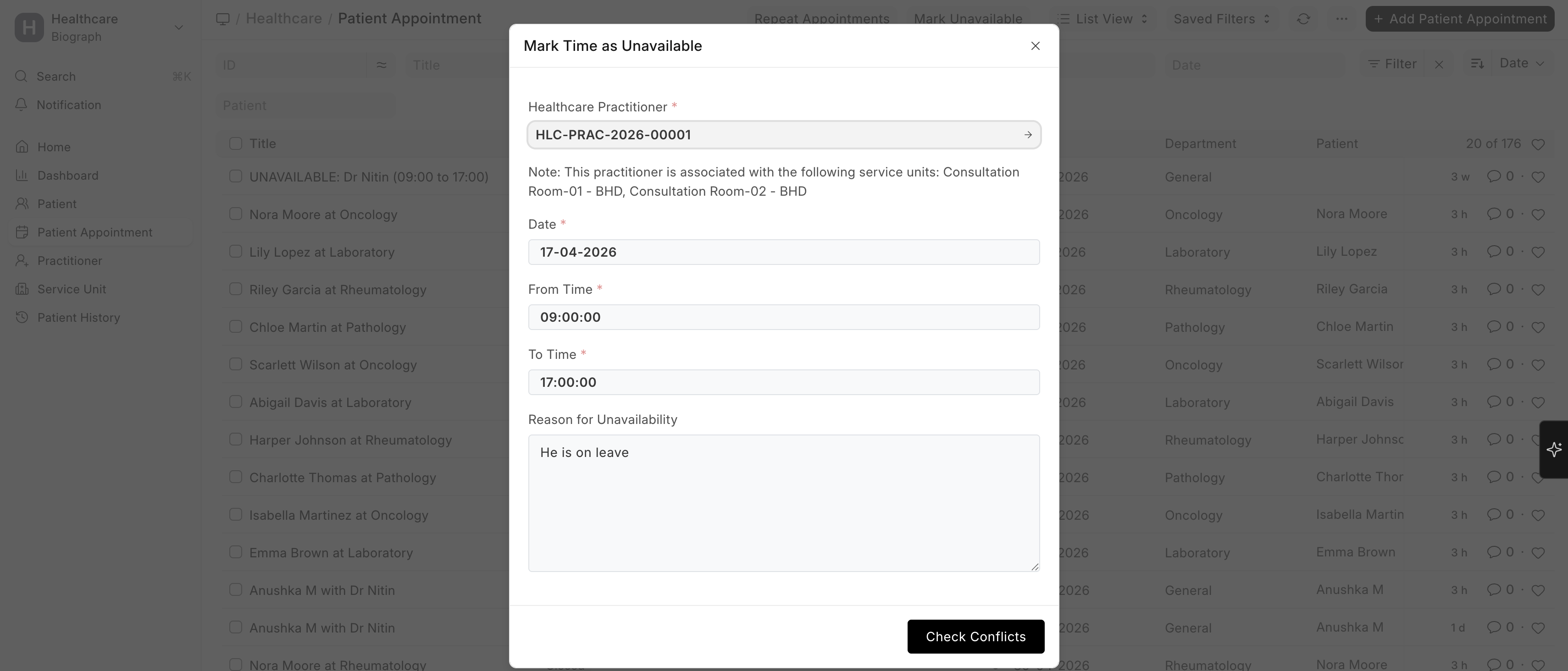
- Click Mark Unavailable
- Fill the required details
- Click Check Conflicts
- Save the record
Unavailability Fields
| Field | Description |
|---|---|
| Healthcare Practitioner | Practitioner whose schedule is blocked |
| Date | Date of unavailability |
| From Time | Start time of unavailability |
| To Time | End time of unavailability |
| Reason for Unavailability | Optional reason (e.g., Leave, Emergency) |

How It Works
- Blocks selected time range for the practitioner
- Can also be applied to a Service Unit, not just a practitioner
Prevents:
- New bookings
- Slot visibility during appointment creation
Applies across all associated service units.
Conflict Detection
Before saving:
- System checks for existing appointments in the same time range
If conflicts are found:
- Displays a detailed conflict dialog with overlapping appointments
- Prevents saving until resolved
System Behavior
Creates a special Patient Appointment with:
- Appointment Type: Unavailable
- Status: Unavailable
This record:
- Blocks scheduling
- Appears in list and calendar
Visual Indicators
Unavailable slots are:
- Highlighted in red (#ff5858) in Calendar View
- Marked clearly in Appointment List
Cancellation of Unavailability
To remove blocked time:
- Open the Unavailable record
- Click Cancel
System will:
- Remove the block
- Restore availability
- Remove the associated calendar event
Key Notes
- Both features use the same conflict detection mechanism
- Block Booking → Creates normal appointments with custom time
- Mark Unavailable → Creates system-blocking entries
- Overlapping bookings are strictly prevented
- Both features are fully integrated with the calendar for real-time visibility