

Appearance
Masters Configuration
Masters are the foundational data that the system uses across all modules. Set these up before you start day-to-day operations.
Medical Department
Medical Departments represent the clinical specialties in your facility.
To create a Medical Department:
Home → Healthcare → Masters → Medical Department → New
How to create:
- Go to Medical Department list
- Click + Add Medical Department
- Enter the department name (e.g., Cardiology, Orthopedics, General Medicine)
- Optionally set a company filter
Common departments: General Medicine, Pediatrics, Cardiology, Orthopedics, ENT, Ophthalmology, Dermatology, Gynecology, Neurology, Psychiatry
Healthcare Service Unit
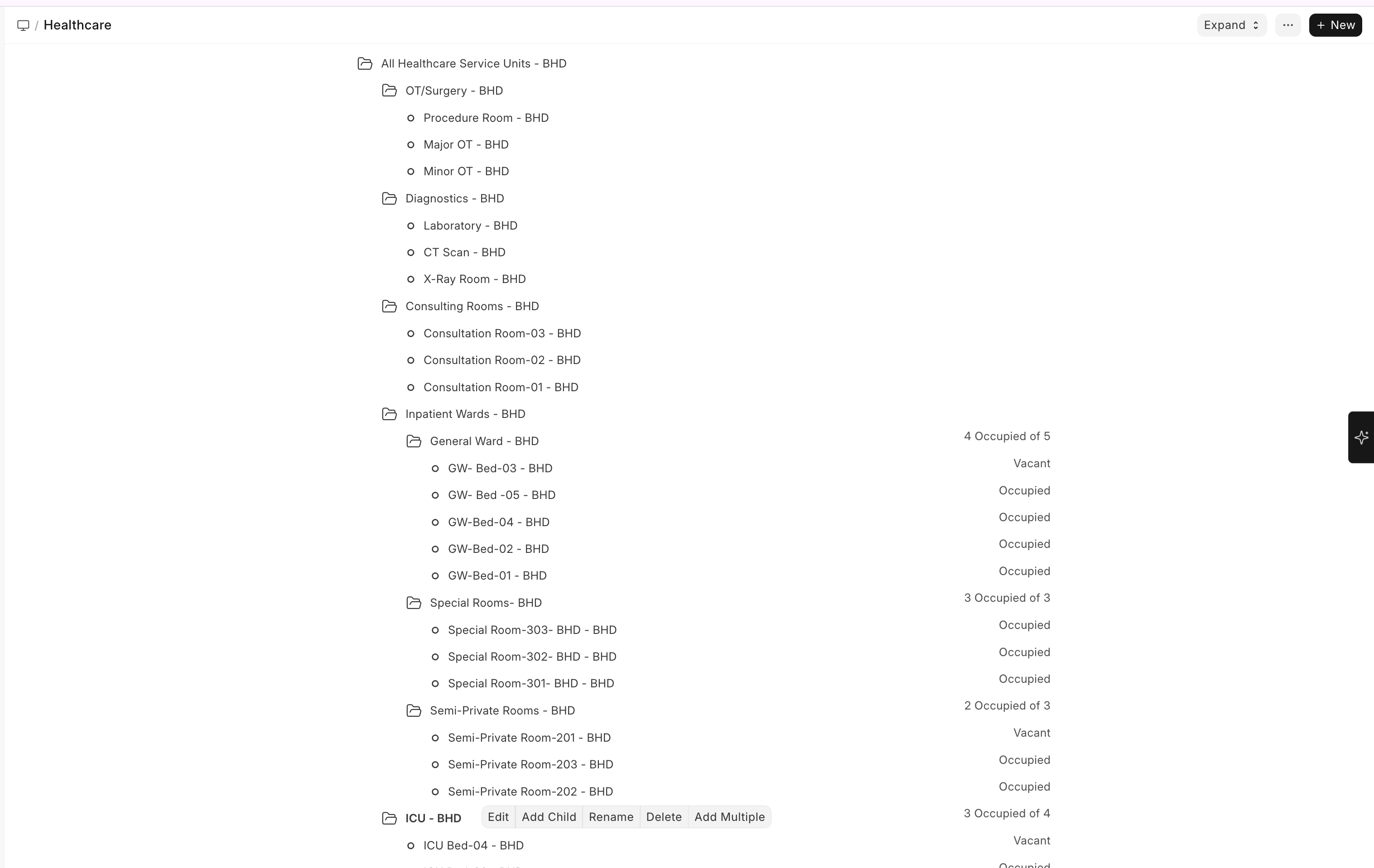
Service Units represent the physical locations within your facility, organized in a tree hierarchy.
Examples of service units:
- Main Hospital
- Ground Floor
- OPD Room 1
- OPD Room 2
- Reception
- First Floor
- Ward A (General)
- Ward B (Private)
- ICU
- Basement
- Pathology Lab
- Radiology
- Ground Floor
How to create:
- Go to Healthcare Service Unit (uses a tree view)
- Click Add Child to create units under a parent
- Set the Service Unit Type, Company, and whether it is an Occupiable unit (for beds)
Healthcare Service Unit Type
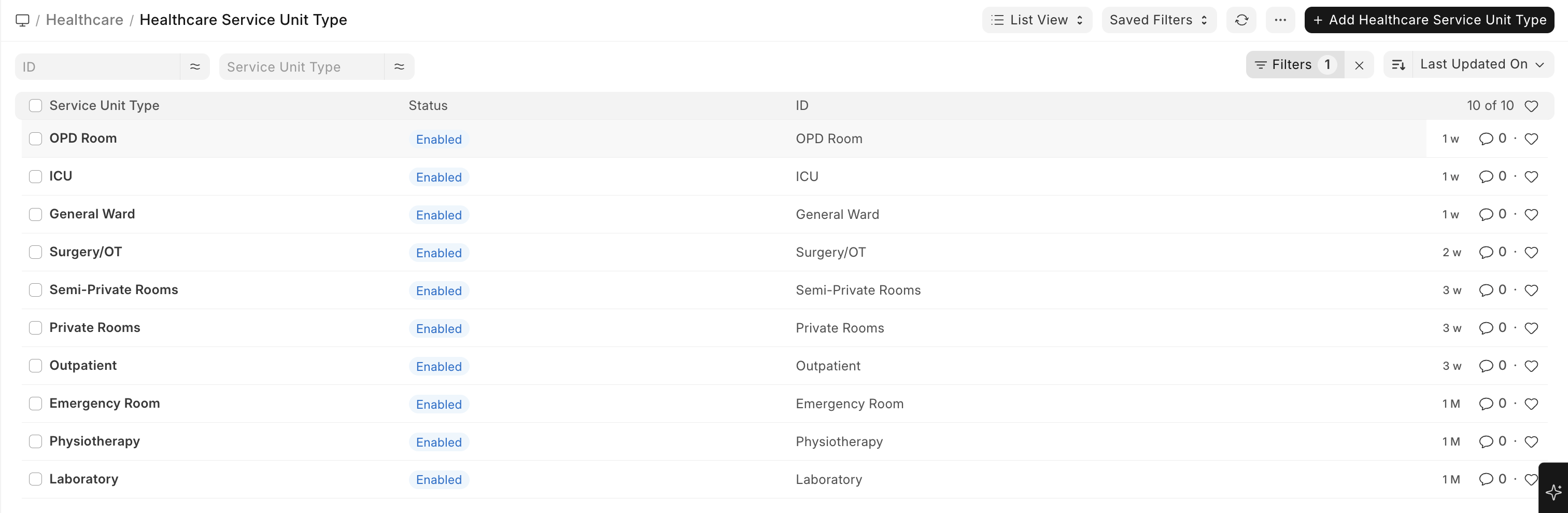
To create a Healthcare Service Unit Type:
Home → Healthcare → Masters → Healthcare Service Unit Type → New
Defines the type of a service unit and links it to billing items.
| Field | Description |
|---|---|
| Service Unit Type Name | e.g., Examination Room, General Ward Bed, ICU Bed, Laboratory |
| Item | The ERPNext Item linked for billing purposes |
| Item Group | The item category |
| Allow Appointments | Whether appointments can be booked for this unit type |
| Inpatient Occupancy | Whether this unit type supports bed occupancy |
| Is Group | Whether this is a group/category (not an actual service location) |
Appointment Type
To create an Appointment Type:
Home → Healthcare → Appointment Type → New
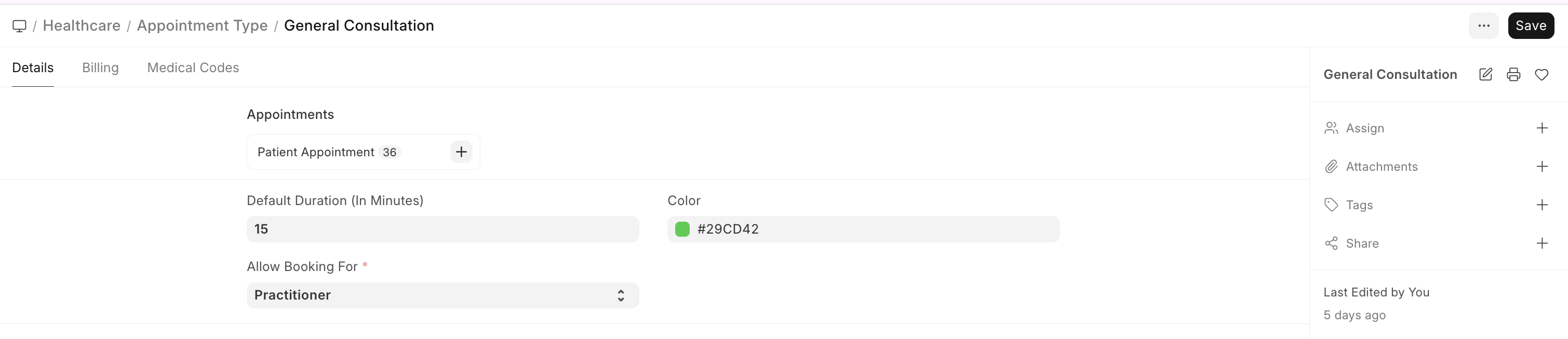
Define the types of appointments your facility offers.
| Field | Description |
|---|---|
| Appointment Type Name | e.g., General Consultation, Follow-up, Specialist, Emergency |
| Default Duration | Duration in minutes |
| Color | Calendar color coding |
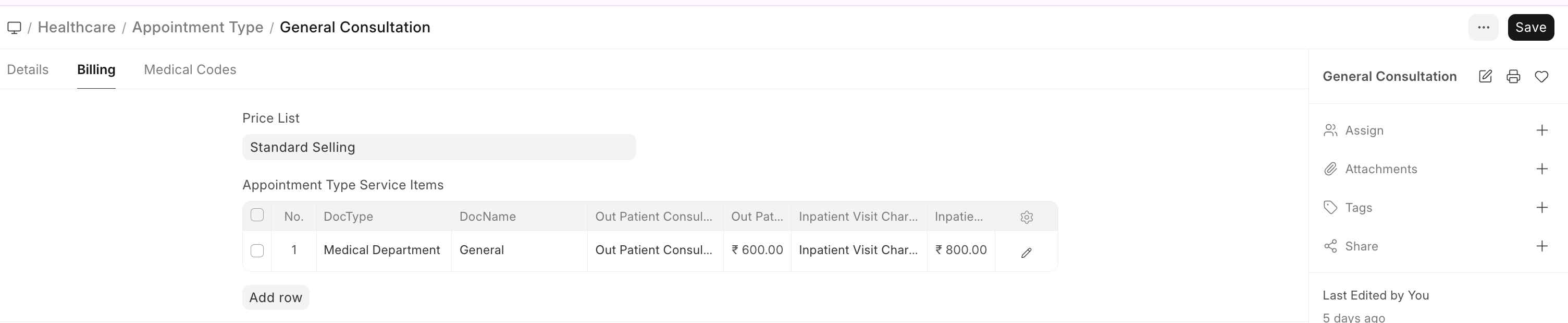
| Service Items | Link appointment type to billable items with pricing |
Tip: You can configure different prices for the same appointment type based on the service unit or department.
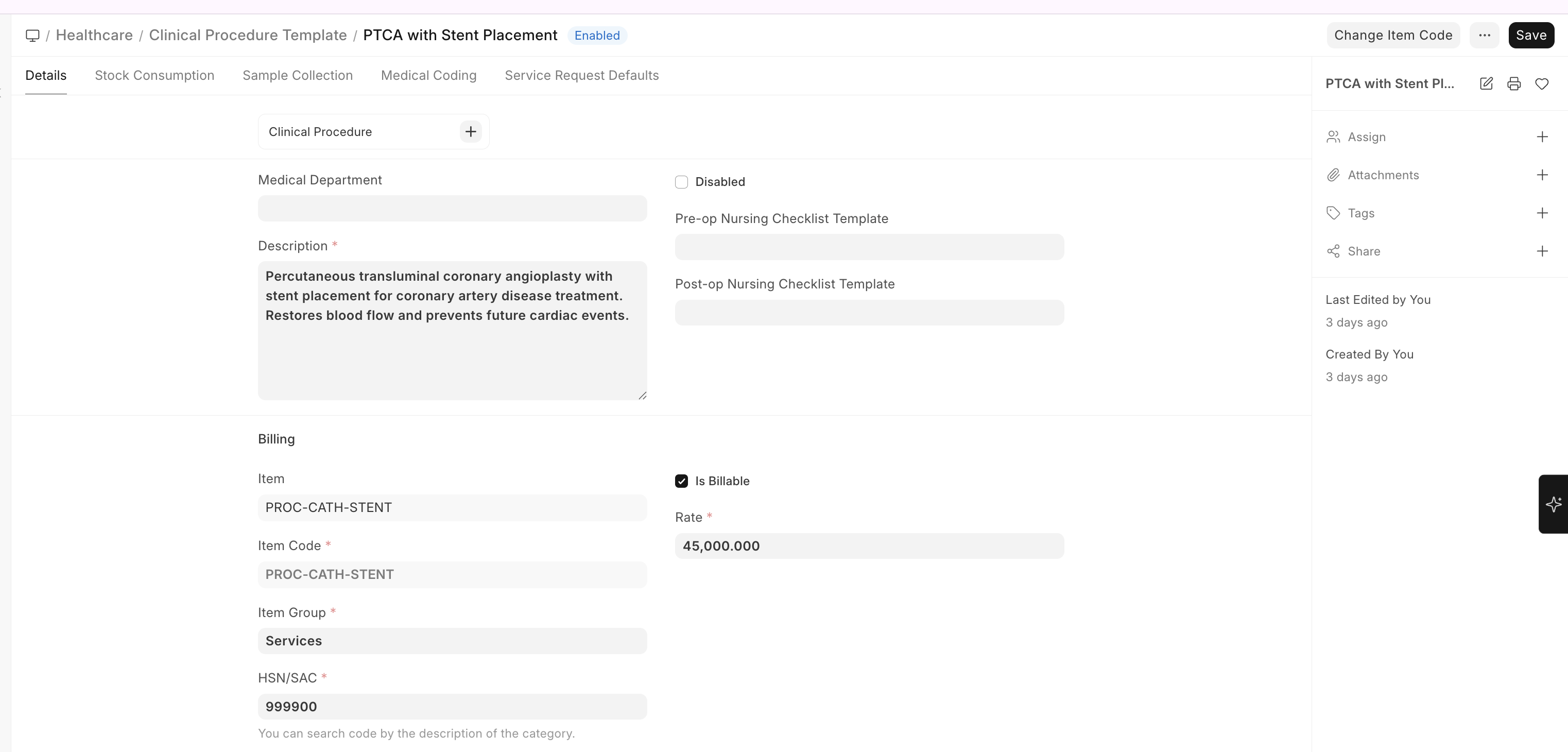
Clinical Procedure Templates
To create a Clinical Procedure Template:
Home → Healthcare → Clinical Procedure Template → New
Templates define reusable procedure configurations:
| Field | Description |
|---|---|
| Template Name | e.g., ECG, Wound Dressing, Minor Surgery |
| Department | Medical department |
| Item | ERPNext Item for billing |
| Rate | Standard charge |
| Consumables | List of items consumed during the procedure |
| Description | Procedure description and instructions |
Dosage Forms / Route / Duration
To create a Dosage Form:
Home → Healthcare → Masters → Dosage Form → New
Configure medication-related masters:
- Dosage Form — Tablet, Capsule, Syrup, Injection, Cream, Ointment, etc.
- Prescription Dosage — e.g., 1-0-1 (morning-afternoon-night), 1-1-1, 0-0-1
- Prescription Duration — e.g., 3 Days, 5 Days, 1 Week, 2 Weeks, 1 Month
To create a Route of Administration:
Home → Healthcare → Masters → Route of Administration → New
Complaint & Diagnosis Masters
To create a Complaint:
Home → Healthcare → Masters → Complaint → New
To create a Diagnosis:
Home → Healthcare → Masters → Diagnosis → New
- Complaint — Pre-defined symptoms/complaints (Fever, Headache, Cough, etc.) for quick selection during encounters
- Diagnosis — Pre-defined diagnoses that can be linked to medical codes (ICD-10, SNOMED)